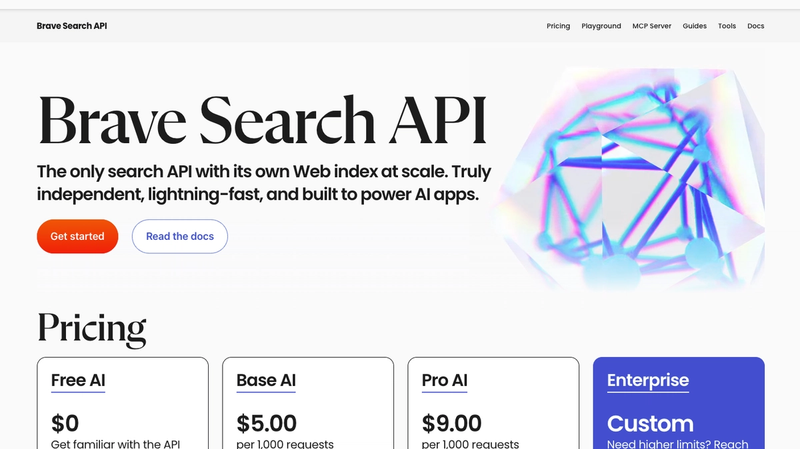
One of the biggest upgrades you can make to your OpenClaw setup is giving it the ability to search the web. Out of the box, your AI assistant only knows what its underlying model already knows, which means outdated answers, missed news, and a lot of guessing. Brave Search API fixes that. It's the officially recommended search provider for OpenClaw, and getting it working takes about five minutes.
Why Brave Search?
Brave Search has its own independent web index; it doesn't scrape Google or Bing. That makes it faster, more privacy-friendly, and surprisingly good at returning fresh, relevant results. For an AI agent that needs to pull real-time info on demand, it's one of the best options out there.
Step 1: Create a Brave Search API Account
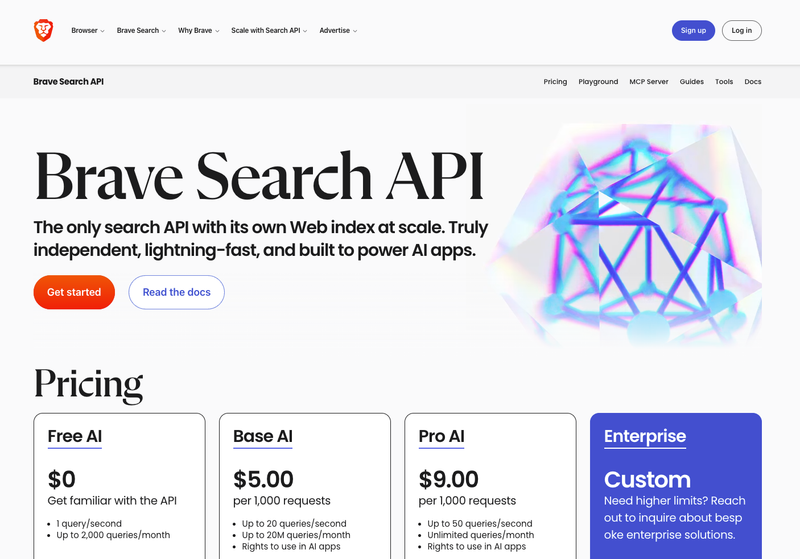
Go to brave.com/search/api and sign up for an account. You'll need a credit card even for the free plan — it's just an anti-fraud measure, you won't be charged. The free tier gives you 2,000 search requests per month, which is plenty for personal use.
Step 2: Pick a Plan
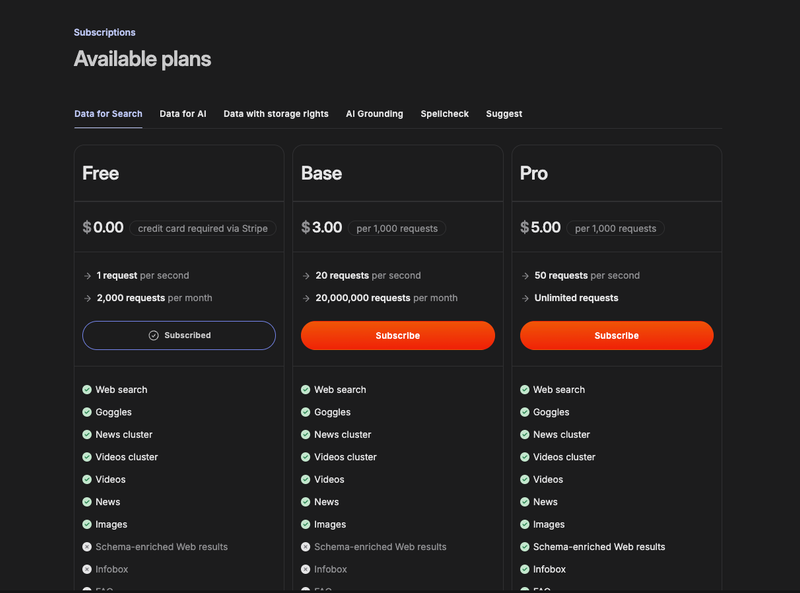
Brave offers Free, Base, and Pro tiers. For most people, the Free plan is all you need — it gives you 2,000 search requests per month. More than enough to get started and see how it works with your agent.
Step 3: Grab Your API Key
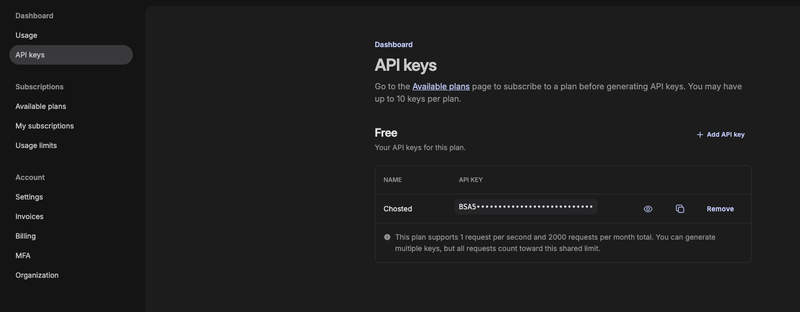
Once you've signed up, go to your dashboard and generate an API key. Copy it, you'll need it in the next step.
Step 4: Add It to Your OpenClaw Config
The easiest way is to run the built-in config command:
openclaw configure --section webThis will prompt you to enter your Brave API key and save it automatically. If you prefer to do it manually, open your OpenClaw config file and add the following:
{
  tools: {
    web: {
      search: {
        provider: "brave",
        apiKey: "YOUR_BRAVE_API_KEY_HERE",
        maxResults: 5,
        timeoutSeconds: 30
      }
    }
  }
}
That's it. Save the file, restart your OpenClaw gateway, and your agent can now search the web.
Step 5: Test It
Just ask your OpenClaw something it wouldn't know off the top of its head: latest news, today's weather, a recent product launch. If it pulls back real results instead of guessing, you're good to go.
A Quick Note on Limits
The free tier covers 2,000 searches per month. If your agent is searching a lot, multiple times a day, you might burn through that faster than expected. Brave's paid plans start from there if you need more headroom. Either way, it's one of the cheaper ways to give your AI agent real-time search without paying a fortune.